Tuesday, 16 October 2012

Dell Blade IOM back door console access

There are three ways to manage a Dell Blade switch.


  1. The good old serial console
  2. SSH if you have configured the switch with an IP address via method 1.
  3. SSH to the CMC IP address with putty, teraterm etc.
    at the $ prompt type:
    $ connect switch-1
  4. To exit type CTRL+\
Magic console access to the switch for a remote location without a serial connection, great if you assign the wrong VLAN like I did and get cut off from the switch via SSH :P

switch-1 = A1
switch-2 = A2
switch-3 = B1
switch-4 = B2
switch-5 = C1
switch-6 = C2

Wednesday, 3 October 2012

Dell servers stuck at Initializing firmware interfaces...

I have seen a number of 12G Dell servers getting stuck after POST with the message below.


If you leave the server long enough it does move on. I have seem this take 45 minutes!!!
Dell PS are aware of the problem which seems to mainly effect, but not limited to blades with quad port mezz cards.
I have fixed this for one customer by using the lice cycle controller to update all the firmware, but the next site I saw this the firmware didn't work.
The work around seems to be to enter the Life Cycle controller and under the iDRAC setting untick "Collect hardware inventory on boot"

Update: Doing so stops m1000e BIOS profiles from working! Dell state they are having a lot of calls over this and are working towards a fix.

Monday, 1 October 2012

Force10 - % Error: Port is in Layer-2 mode

When you try to configure ports on a Force 10 switch for a LAG the switch throws this error:


% Error: Port is in Layer-2 mode Gi 0/xx

To prevent this issue the command

# no switchport

If the no switchport command gives the error below:

% Error: Port has Layer-2 config on it Gi 0/xx

 You will need to remove the spanning tree configuration for that port with this command.


#no spanning-tree rstp edge-port

Don't forget to save the running config ;)

Tuesday, 25 September 2012

Troubleshooting excessive I/O on a LUN in VMware


If you notice a lot of I/O being generated on a particular LUN. How do you figure out who / what is causing this? Well it is not as difficult as you think it would be…
  • Open up esxtop
  • Go to the “Device” view (U)
  • Find the device which is causing a lot of I/O
  • Press “e” and enter the “Device ID” in my case that is an NAA identifier so “copy+paste” is easiest here
  • Now look up the World ID under the “path/world/partition” column
  • Go back to CPU and sort on %USED (press “U”)
  • Expand (press “e”) the world that is consuming a lot of CPU, as CPU is needed to drive I/O

Friday, 17 August 2012

EqualLogic Auto-Snapshot Manager Agent fails to start

EqualLogic Auto-Snapshot Manager Agent fails to start on Windows hosts that are not connected to the internet. This happens because the Host Intergration Toolkit 4.0 uses .NET 2.0.
Each time a .NET application starts, it tries to check revoked certificates at crl.microsoft.com because the server has no internet access the service times out while waiting.

The solution is to increase the ServicePipesTimeout value in the registry.


The Service Control Manager will generate an event if a service does not respond within the defined timeout period (the default timeout period is 30000 milliseconds). To resolve this problem, use the Registry Editor to change the default timeout value for all services.
  • In the Registry Editor, click the registry subkeyHKEY_LOCAL_MACHINE\SYSTEM\CurrentControlSet\Control
  • In the details pane, locate the ServicesPipeTimeout entry, right-click that entry and then select Modify.Note: If the ServicesPipeTimeout entry does not exist, you must create it by selecting New on the Edit menu, followed by the DWORD Value, then typing ServicesPipeTimeout, and clicking Enter.
  • Click Decimal, enter the new timeout value in milliseconds (I prefer 120000), and then click OK.
  • Restart the computer.

This can also be caused if the installation of the HIT 4.0 fails to install the Microsoft MPIO feature. The solution is to uninstall the HIT, reboot, manually install the MPIO feature and then install the HIT again.

see support.microsoft.com/kb/824344 for further reading.

Wednesday, 1 August 2012

Converging 10GbE and 1GbE networks with Force 10 and Dell PowerConnect

Customers are now moving from 1GbE iSCSI storage to 10GbE. This introduces a new challenge of converging 1 and 10 networks.  In this situation the customer has two existing EqualLogic 1GbE Arrays connected to a pair of Dell PowerConnect 5424 switches, these switches where joined together via a 2Gb LAG. The customer has purchased two new 10Gb Arrays and a pair of Dell Force 10 s4810 switches, but needs to have a period where the existing ESXi servers need to continue accessing the array.

The end solution:
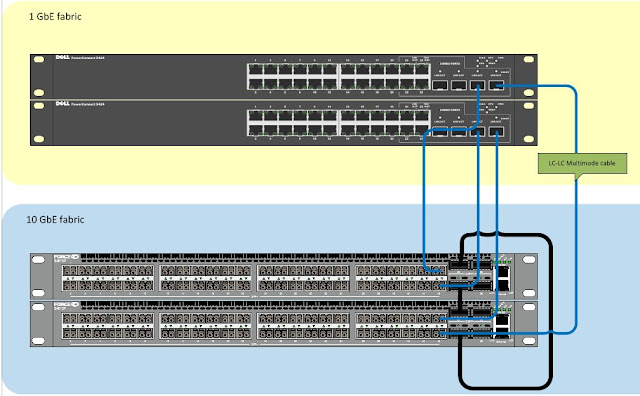


Parts required:

4 x PowerConnect SFP Transceivers, Dell part number 0HHM9W
4 x Force10 SFP Transceivers, Dell part number 0GF76J
4 x LC-LC Multi-mode Optical Cables, depicted in blue above.

Twin-axe cables from the s4810 ports to the SFP combo ports do not work!! The answer is to use a Or if you are using PowerConnect 62xx series you need to use:

1 x Dell PowerConnect 622xx/M6220 Dual Port SFP+ module, Dell Part number 409-10135
2x 10GbE SFP+ Direct Attach copper cable 5M-KIT (Either or) Dell Part number 470-12823
2x 10GbE SFP+ Direct Attach copper cable 2M-KIT (Either or) Dell Part number 470-12822

Configuration on both PowerConnect switches:

Break the 2 port LAG between the PowerConnects, insert the SFP modules into to SFP ports 23 and 24 making sure the shared Ethernet ports aren't in use!

#conf
(config)#interface port-channel 1
(config)#desc Force10-link
(config)#port jumbo-frame
(config)#flowcontrol on
(config)#switchport mode trunk
(config)#switchport trunk allowed vlan add 100 (the iSCSI vlan)
#exit

#conf
(config)#internet range ethernet g23-24
(config)#channel-group 1 mode on (Must be ON not auto/active)

On the Force10 switches, update the firmware, stack the switches and issue these commands to create two port channels, two are required because the PowerConnect 5424's can't be stacked:

interface Port-channel 1
 description "LAG to bottom 5424"
 no ip address
 mtu 12000
 switchport
 channel-member TenGigabitEthernet 0/46
 channel-member TenGigabitEthernet 1/46
 no shutdown
interface Port-channel 2
 description "LAG to top 5424"
 no ip address
 mtu 12000
 switchport
 channel-member TenGigabitEthernet 0/47
 channel-member TenGigabitEthernet 1/47
 no shutdown

Now that the LAG between the 5424 switches and the F10's has been created we need to tell the VLANs that the traffic can pass across the LAG. The Force 10 was configured with two VLANs to match the 5424's, vlan 100 for iSCSI and vlan 101 for vMotion. The lines in bold are in important ones.

interface Vlan 100
 description iSCSI
 name iSCSI
 ip address 192.168.10.251/24
 tagged Port-channel 1-2
 untagged TenGigabitEthernet 0/0-23 (top switch)
 untagged TenGigabitEthernet 1/0-23 (bottom switch)
 no shutdown
interface Vlan 101
 description vMotion
 name vMotion
 ip address 192.168.11.251/24
 tagged Port-channel 1-2
 untagged TenGigabitEthernet 0/24-31
 untagged TenGigabitEthernet 1/24-31
 no shutdown
!

Test the LAG by pinging IP addresses on both sets of switches. Don't forget to copy the running-config to startup-config on all the switches. As a note the LAG did not work the first time , I had to remove the channel members with these commands:

no channel-member TenGigabitEthernet 0/46
no channel-member TenGigabitEthernet 0/47
no channel-member TenGigabitEthernet 1/46
no channel-member TenGigabitEthernet 1/47
Once I re-added the ports back the LAG sprang into life! Dell tech said they had seen this before!